MJO · Connect guide · ChatGPT
How to connect an MCP server to ChatGPT
ChatGPT adds a remote MCP server as a plugin from its Plugins page. Who can do it depends on your plan, and it works on ChatGPT on the web only. This guide follows OpenAI's help centre and developer docs.
In MCP Journey Optimization terms, ChatGPT is the client where the plan decides the journey before the person does anything: on some plans they cannot add a custom server at all. The side-by-side view of every client is in the field guide.
What you need
- A plan that allows it. OpenAI's help page says custom MCP connections are "available for ChatGPT Business and Enterprise/Edu customers on ChatGPT web", that "Full MCP is only available to Business and Enterprise/Edu users, currently", and that "Pro users can connect custom MCP servers with read/fetch permissions." The page does not mention Free, Go or Plus for custom servers.
- ChatGPT on the web. The page says mobile is not supported ("web only").
- Permission in your workspace. On Business, only admins and owners can create and publish plugins for custom MCP servers. On Enterprise/Edu, admins can let selected members create them. The workspace setting is called "Create plugins with MCPs".
- A public HTTPS endpoint, e.g. for the CrushedWithIt server,
<your server URL>, including the/mcppath if it has one. OpenAI's developer page names streamable HTTP for a public endpoint. A local server is reached through OpenAI's Secure MCP Tunnel instead.
OpenAI's help page also says you do not need to turn on Developer Mode first.
Steps
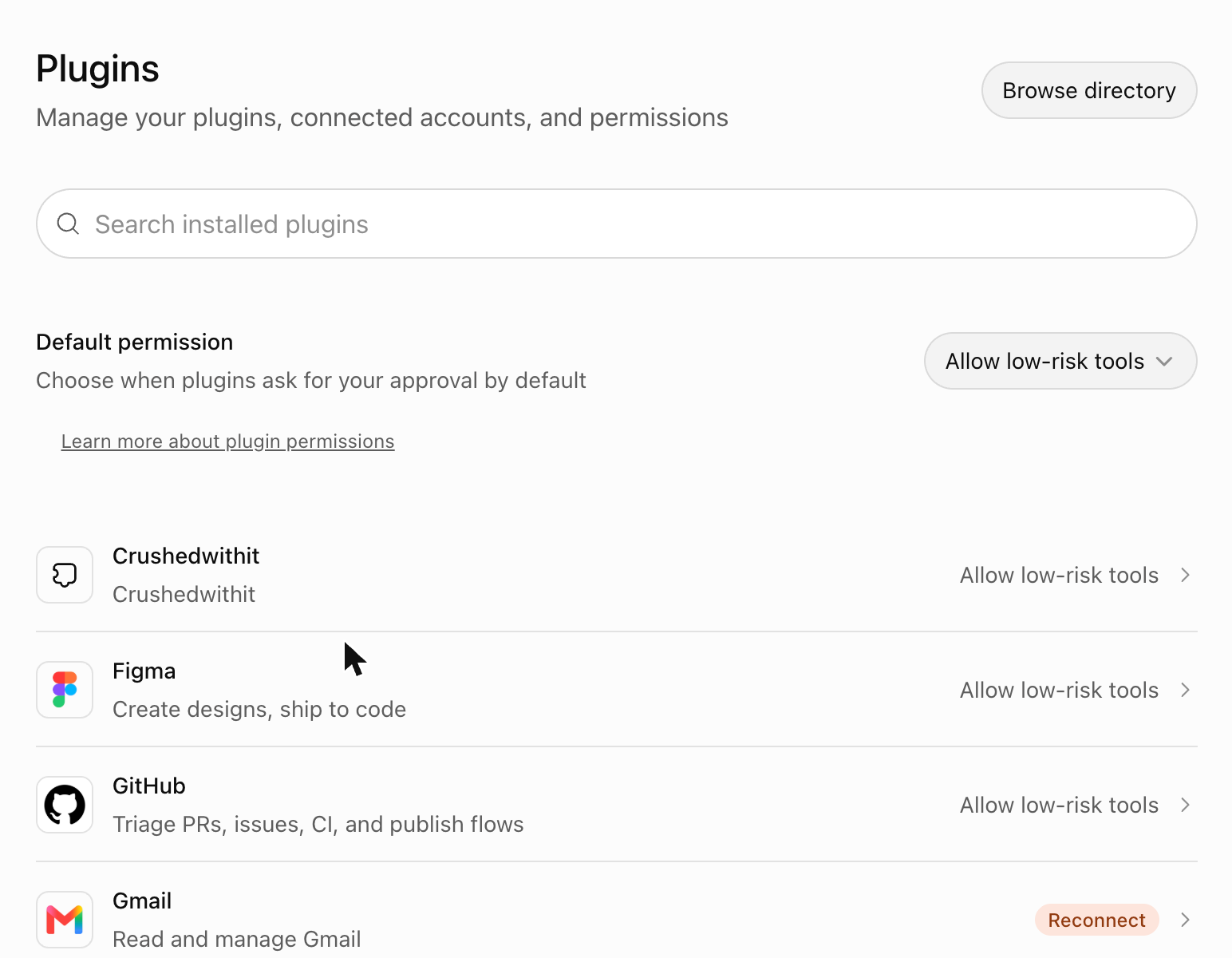
- Go to Plugins (chatgpt.com/plugins).
- Select the plus button, then Add custom MCP server.
- Enter a name and, optionally, a description, e.g. "CrushedWithIt".
- Under Connection, enter the public HTTPS MCP endpoint URL. (Or select Tunnel and choose a Secure MCP Tunnel, or enter its
tunnel_id.) - Configure authentication as the provider instructs. OpenAI's help page details OAuth.
- Read the risk warning and select I understand and want to continue.
- Select Create as a plugin, then review the tools and metadata ChatGPT discovered.
OpenAI also documents an older route: Workspace settings or user settings, then Apps > Create, enter the endpoint, choose authentication, Scan Tools, Create. Drafts then appear with a Dev label. In a Business or Enterprise workspace, an admin publishes the plugin before others can use it.
Use it in a chat
Start a new conversation, type @ in the prompt box and select the plugin. OpenAI notes the selection applies to that one message, so @mention it again when a follow-up needs it.
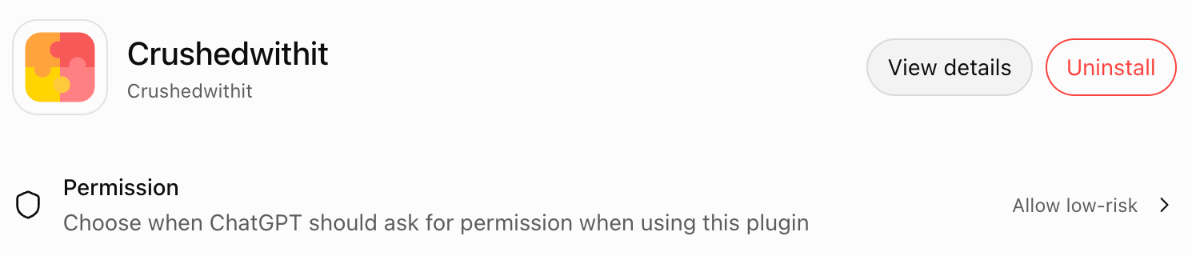
What it looks like (captured 26 Nov 2026)
Real screens from a ChatGPT account with the CrushedWithIt server connected. ChatGPT currently labels connected servers Plugins in Settings; OpenAI's help pages use both "Apps" and "Plugins".

Try it
Pick something read-only first. For the CrushedWithIt server:
@CrushedWithIt show my account and how many credits I can spend now.
For any other server: "@<plugin> list what you can do and run the simplest read-only action." OpenAI says write or modify actions may trigger a confirmation prompt, and some risky actions may be blocked.
Common errors and fixes
| What you see | Fix | Basis |
|---|---|---|
| No way to add a custom server | Check your plan and workspace role. Business: admins and owners only. Pro: read/fetch only. Mobile: not supported. | OpenAI help page |
| ChatGPT can't connect | Verify the public HTTPS endpoint with MCP Inspector; for a tunnel, check its workspace association and tunnel-client status. | OpenAI developer page |
| Tool calls fail after the server changed | If the tool definition is not backward compatible, an admin or owner must refresh the tool actions in Workspace settings. For your own connection: open it on the Plugins page and select Refresh, then start a new conversation. | OpenAI help and developer pages |
| People keep having to sign in again | The OAuth provider may not be issuing refresh tokens. OpenAI says to include offline_access in the authorization request and discovery metadata, then recreate the app. | OpenAI help page |
| Sign-in never starts (server builders) | General, from the MCP spec: the server must answer an unauthenticated request with 401 and a WWW-Authenticate header pointing to /.well-known/oauth-protected-resource. | MCP authorization spec |
How to disconnect
- Open Settings > Plugins.
- Select the plugin or app.
- If Connected accounts appears, open the account's more options menu (•••); otherwise use Connection or the plugin's more options menu.
- Select Disconnect.
OpenAI says disconnecting stops future access through that account but does not delete existing conversations, saved files or memories, and that uninstalling a plugin can disconnect every account connected through it.
Sources
- OpenAI Help: Connecting custom MCP servers in ChatGPT, checked 26 Nov 2026.
- OpenAI developers: connect your server to ChatGPT, checked 26 Nov 2026.
- OpenAI Help: Connecting and managing app accounts, checked 26 Nov 2026.
- For server builders: OpenAI MCP auth and the MCP authorization specification.
Other clients: the MCP field guide compares all ten. The framework: MCP Journey Optimization (MJO).